Well, I think it's time to admit that work in Dynamics GP is taking an extended break. With a new position, comes new focus, and sadly GP is not a part of that. However, I have certainly not left the world of technology, but have moved out of the world of debits and credits to pure database development.
In that vein, I have launched a new blog, DataGeek, that will be more data and database development focused. Life is journey into the unknown and I may yet return to GP, it's certainly been fun.
Until then....
Monday, August 16, 2010


Friday, April 9, 2010
Strip Time from SQL Date
Often, particularly when saving dates to Dynamics GP, we need to strip the time out of a SQL date value. I found a neat little trick for doing that recently in an article on SQLServerCentral.com by Seth Phelabaum.
SELECT DATEADD(dd, DATEDIFF(dd,0,GETDATE()), 0).
This works by getting the number of days since date 0, which truncates the time, and then adding it back on to date 0.
In his article he has a few other DATEADD/DATEDIFF tricks. It’s well worth a read.
Wednesday, April 7, 2010
King Me
It appears that I had a bit of a hiatus from blogging. This was primarily due to a whirlwind of a successful job search, followed by a brief transition. The search itself was quite enlightening as the last time I formally interviewed for a job was 1997 and the last time I actually got a job from the resume/interview process was 1987.
Anyway, during one of my interviews I was asked what I would do as a manager if three of my developers came up with equally good but different solutions to a problem but couldn’t agree on which one to implement. My answer was something to the affect that, although I prefer to be a consensus builder, management by committee is no management at all, the buck would stop with me and I would have to pick one.
My interviewer had another interesting idea. If remember it correctly, he called it his “King Theory”. What he would do is pick one of the developers and make him or her “The King”. It would be his or her job to pick one of the solutions and be responsible for it’s success. They would be able to pick any or any combination of the solutions but the buck would stop with them.
Now the interesting question is what would be the best solution for the developer to choose and what would they? The natural instinct would probably be to pick their own but might it not be better to pick someone else’s or a combination to invest the other team members in the success of the implementation?
I thought it was a pretty interesting solution to the problem. Has anyone else run across this? What do you think of it?
Friday, February 19, 2010
SQL Server Recursive Common Table Expressions…And Other Ways to Generate a Stack Overflow in SQL Server
OK, so won’t actually generate a stack overflow error in SQL Server, but it makes for a good title. Some time ago I was asked to write a custom deferred revenue integration into GP. There were some quirks to their recognition schedule that prevented them from using the standard deferred revenue module.
For those of you not familiar with deferred revenue, here’s a quick primer. If you pay $24 for a 12 month magazine subscription, the publisher is not allowed to recognize and report to their stockholders the entire $24 when they receive it. They can only recognize revenue as they’ve delivered the service, in this case each magazine, to you. As such, they will recognize and report $2 in revenue each month.
OK, so how do you write a SQL statement that takes a set of rows and creates multiple rows from each individual row. Let’s say that we have a sales table, tblSales, that has an amount to be recognized, a starting month and a number of months to be recognized over as follows:
| OrderNumber | Amount | StartingMonth | RecognitionMonths |
| 1 | $120.00 | 3/2010 | 3 |
| 2 | $257.00 | 2/2010 | 7 |
To make this easy, we’ll recognize the revenue equally over the number of months. Often revenue needs to be recognized according to the number of days in the month and take into account starting and ending dates that are mid-month. In this case we’ll use a simple model and simply need to return a dataset of 10 rows as follows:
| OrderNumber | AmountRecognized | MonthRecognized |
| 1 | $40.00 | 3/2010 |
| 1 | $40.00 | 4/2010 |
| 1 | $40.00 | 5/2010 |
| 2 | $36.71 | 2/2010 |
| 2 | $36.71 | 3/2010 |
| 2 | $36.71 | 4/2010 |
| 2 | $36.71 | 5/2010 |
| 2 | $36.71 | 6/2010 |
| 2 | $36.71 | 7/2010 |
| 2 | $36.74 | 8/2010 |
So how, in a SQL statement, can we get from 2 rows to 10? As with any problem, I’m sure we could come up with any number of solutions using WHILE loops and table variables, but I’m going to use the opportunity to introduce recursion in SQL.
Recursion is a feature of the T-SQL Common Table Expression. It is essentially a common table expression (CTE) that references itself. Let’s look at the following statement:
WITH DeferredRevenueEntries(
OrderNumber
,AmountRecognized
,MonthRecognized
,RecognitionMonths
,CurrentMonthIndex) AS
(
-- Anchor member
-- The anchor member creates the entry for the first month.
SELECT
OrderNumber
,AmountRecognized = Amount / RecognitionMonths
,MonthRecognized = StartingMonth
,RecognitionMonths
,1 AS CurrentMonthIndex
FROM tblSales
UNION ALL
-- Recursive member
-- Recurse one time for each additional month to be recognized
SELECT
OrderNumber
,AmountRecognized
,MonthRecognized = DATEADD(month, 1, MonthRecognized)
,RecognitionMonths
,CurrentMonthIndex = CurrentMonthIndex + 1
FROM DeferredRevenueEntries
WHERE CurrentMonthIndex < RecognitionMonths
)SELECT
OrderNumber
,AmountRecognized
,MonthRecognized
FROM DeferredRevenueEntries
ORDER BY
OrderNumber
,MonthRecognized
Here we’re defining a CTE, DeferredRevenueEntries. This is a UNION query. the first part of the union is called the anchor member. This is a SELECT statement against our source table, tblSales. This part of will return the first month rows for each of the sales records, with the amount to be recognized being the total amount divided by the number of months.
The second part is the recursive member. Note that the FROM clause is referencing the CTE itself. This will take the initial two records from the first part of the union, and keep returning them, adding one month each time. To make sure that we only return the number of records matching the number of months to be recognized, we add the field CurrentMonthIndex, increment it each time we recurse and make sure we only return records where the CurrentMonthIndex is less than the number of months to be recognized.
OK, so what happens if we forget to put in the WHERE clause in the recursive member? Will we in fact cause the aforementioned stack overflow? The answer is no. SQL is too smart for that. Instead you will recieve the following error:
Msg 530, Level 16, State 1, Line 1
The statement terminated. The maximum recursion 100 has been exhausted before statement completion.
By default, SQL Server limits you to a maximum recursion level of 100. It is possible to override that limit by using the MAXRECURSION option in the final SELECT statement such that it looks as follows:
SELECT
OrderNumber
,AmountRecognized
,MonthRecognized
FROM DeferredRevenueEntries
ORDER BY
OrderNumber
,MonthRecognized
OPTION (MAXRECURSION 1000)
Now you might say, well what if I put in a MAXRECURSION of 10000000000? Is there some way I can create a stack overflow? Again, SQL will outwit you. The maximum MAXRECURSION limit is 32767.
OK, so there’s one final issue. You’ll note in my results example above that the recognition amount for order 2 was $36.71 except for the last entry where it’s $36.74. This is because never met an accountant who could deal with as much as a single penny off no matter how high the total. To fix that I create the following modified version of the statement:
WITH DeferredRevenueEntries(
OrderNumber
,AmountRecognized
,MonthRecognized
,RecognitionMonths
,CurrentMonthIndex) AS
(
-- Anchor member
-- The anchor member creates the entry for the first month.
SELECT
OrderNumber
,AmountRecognized = ROUND((Amount / RecognitionMonths), 2)
,MonthRecognized = StartingMonth
,RecognitionMonths
,1 AS CurrentMonthIndex
FROM tblSales
UNION ALL
-- Recursive member
-- Recurse one time for each additional month to be recognized
SELECT
OrderNumber
,AmountRecognized
,MonthRecognized = DATEADD(month, 1, MonthRecognized)
,RecognitionMonths
,CurrentMonthIndex = CurrentMonthIndex + 1
FROM DeferredRevenueEntries
WHERE CurrentMonthIndex < (RecognitionMonths - 1)
)SELECT
OrderNumber
,AmountRecognized
,MonthRecognized
FROM DeferredRevenueEntriesUNION ALL
-- Create last entry manually to adjust for rounding errors.
SELECT
tblSales.OrderNumber
,AmountRecognized = ROUND(tblSales.Amount - DeferredRevenueEntryTotals.TotalAmountRecognized, 2)
,MonthRecognized = DATEADD(month, 1, DeferredRevenueEntryTotals.LastMonthRecognized)
FROM tblSales
INNER JOIN (
SELECT
OrderNumber
,TotalAmountRecognized = SUM(AmountRecognized)
,LastMonthRecognized = MAX(MonthRecognized)
FROM DeferredRevenueEntries
GROUP BY OrderNumber) AS DeferredRevenueEntryTotals
ON tblSales.OrderNumber = DeferredRevenueEntryTotals.OrderNumberORDER BY
OrderNumber
,MonthRecognizedYou’ll notice a few changes here. The first is that I round the AmountRecognized value to 2 digits. The second is that the CTE is now only going to recurse through the number of months – 1. This is because we’re create the final entry in the last select in the UNION query by taking the total sales amount from tblSales and then subtracting the total recognized prior to the final month, giving us an amount that is adjusted for any rounding issues.
I hope that this has given you a brief look at the power of the recursive CTE and that you are reassured that you will not break SQL Server by using it. There are certainly many other ways to use the, such as traversing hierarchical lists. Go ahead, recurse away!
Wednesday, February 3, 2010
Wither the SQL Developer? Is T-SQL the Next Assembly Language?
So today I’m going to veer completely away from GP and talk about SQL in general. The reality is that I’m a data and database geek first and a Dynamics GP geek second; and my (current) database language of choice is T-SQL.
But what is the future of that technology? Is T-SQL a data dinosaur? Years ago I actually programmed in assembly language, the language of the CPU itself (ok so technically that would be machine code but let’s not split hairs). Today, processing power and memory have gotten to the point that you can run a language like PHP or C# so many layers above the CPU as to make it invisible. You have an JIT compiled language running on a CLR on top of an operating system on a virtual processor on a hypervisor on a physical processor. Only the most determined driver developer would even consider assembly.
So what of T-SQL? With Visual Studio 2010, Microsoft will be releasing their latest iteration of the ADO.NET Entity Framework, the latest in a long line of tools to abstract away the data layer and hide the dirty underwear of SQL from the developer. The Entity Framework essentially allows you to design, build and implement your database without ever having to get your hands dirty in SQL Management Studio.
Tools like the Entity Framework, LINQ and even the old standby, ADO.NET datasets allow you to do some pretty cool things like being able to join data and enforce referential integrity across disparate data sources and in-memory data structures. They make it easier to make your applications database agnostic.
To be fair, there has always been significant proportion of the developer community who have lived by the philosophy, for some very valid reasons, that the database should be simply a dumb data store. Even GP was built with that philosophy when it supported multiple back end technologies.
I have tended towards embedding as much logic as possible in the database itself; to use the power of functions, views, referential integrity and constraints; to make make stored procedures the middle tier. I have also not found anything quite like T-SQL for querying and analyzing data. The ability to twist and munge and aggregate your data in a single statement of sub-queries (or better yet, Common Table Expressions)
So one day soon will T-SQL be standing among the assemblers and punch card readers in the dusty closet of computer history? Or will the it continue to have a place in our data toolbox?
Monday, January 18, 2010
Common Table Expressions – Dispensing with the Sub-Query
The Common Table Expression (CTE) is a construct that was introduced in SQL Server 2005. It allows you to define a SELECT statement outside of your main query and then reference it within the query. It’s a great replacement for sub-queries, which can be difficult to debug and maintain, especially once their nested. You can think of CTEs as SQL views that exist only within the scope of a particular SQL statement.
Let’s start with an query example similar to one we were asked to do recently. Let’s imagine you’re asked to write an inventory analysis report that requires the following columns:
- Item ID
- Item Description
- Item Class
- Standard Cost
- Quantity On Hand
- Count Sold – The total number of items sold.
- Average Unit Price – The average unit price that the
- Unique Customers Count – The count if individual customers who have purchased the item
- Percentage of Customers – The percentage of all customers who have purchased the item
The report will have start and end date range parameters (Quantity On Hand will be the current regardless of the date range.
Item ID, Item Description, Item Class and Standard Cost come from the item master table. Quantity On Hand comes from the item quantity master table. Count Sold, Average Unit Price, Count of Unique Customers and Percentage of Customers come from a combination of the Sales Order and Customer Master tables.
Now I suspect there may be a way to do this without sub-queries using aggregates and CASE statements but that’s a challenge for another day. When solving a problem I like to break it into manageable chunks. In this case I’d looking at breaking this into two pieces:
- Returning the core item information, Item ID, Item Description, Standard Cost and Quantity On Hand.
- Returning the sales information, Count Sold and Average Unit Price, Unique Customer Count and Percentage of Customers.
Let’s start with the core item info. That query would look as follows:
SELECT
ItemNumber = ISNULL(ItemMaster.ITEMNMBR, QuantityMaster.ITEMNMBR)
,ItemDescription = ItemMaster.ITEMDESC
,ItemClass = ItemMaster.ITMCLSCD
,StandardCost = ItemMaster.STNDCOST
,QuantityOnHand = ISNULL(QuantityMaster.QTYONHND, 0)
FROM IV00101 AS ItemMaster
FULL JOIN IV00102 AS QuantityMaster
ON ItemMaster.ITEMNMBR = QuantityMaster.ITEMNMBR
WHERE ISNULL(QuantityMaster.RCRDTYPE, 1) = 1
Here we’re joining the item master (IV00101) with the item quantity master (IV00102). A couple of notes:
- We’re using a FULL JOIN to ensure we pick up all items. I have found examples where there are records in the item master or quantity master but not a corresponding record in the other.
- We’re restricting the quantity master records to a record type (RCRDTYPE) of 1, which only returns quantities that apply to all sites.
Next we’ll look at the statistics. The query would look as follows:
SELECT
ItemNumber = SOPLineItems.ITEMNMBR
,CountSold = SUM(SOPLineItems.QUANTITY)
,AverageUnitPrice =
CASE
WHEN SUM(SOPLineItems.QUANTITY) = 0 THEN 0.00
ELSE SUM(SOPLineItems.QUANTITY * SOPLineItems.UNITPRCE) / SUM(SOPLineItems.QUANTITY)
END
,CustomerCount = COUNT(DISTINCT CUSTNMBR)
,CustomerPercentage = CAST(COUNT(DISTINCT CUSTNMBR) AS float) /
CAST ((SELECT COUNT(*) FROM RM00101) AS float)
FROM SOP30300 AS SOPLineItems
INNER JOIN SOP30200 AS SOPHeaders
ON SOPLineItems.SOPTYPE = SOPHeaders.SOPTYPE
AND SOPLineItems.SOPNUMBE = SOPHeaders.SOPNUMBE
WHERE SOPHeaders.SOPTYPE = 3
AND SOPHeaders.GLPOSTDT BETWEEN @StartDate AND @EndDate
GROUP BY SOPLineItems.ITEMNMBR
Here we’re pulling the data from SOP line items and SOP headers with a total count from the customer master. A couple of notes:
- We’re using a CASE statement in the Average Unit Price to ensure we don’t get a divide by zero error.
- We’re filtering the rows on the SOP header GL posting date (GLPOSTDT).
- We’re getting the item customer count using the COUNT(DISTINCT ) construct.
- While getting the customer percentage we’re explicitly casting the counts as floats so that it doesn’t perform integer division and only return 0 and 1.
So traditionally, we would combine these together as two sub-queries as below:
SELECT
ItemNumber = Items.ItemNumber
,ItemClass = Items.ItemClass
,ItemDescription = Items.ItemDescription
,StandardCost = Items.StandardCost
,QuantityOnHand = Items.QuantityOnHand
,CountSold = ISNULL(ItemStatistics.CountSold, 0)
,AverageUnitPrice = ISNULL(ItemStatistics.AverageUnitPrice, 0)
,CustomerCount = ISNULL(ItemStatistics.CustomerCount, 0)
,CustomerPercentage = ISNULL(ItemStatistics.CustomerPercentage, 0)
FROM (
SELECT
ItemNumber = ISNULL(ItemMaster.ITEMNMBR, QuantityMaster.ITEMNMBR)
,ItemDescription = ItemMaster.ITEMDESC
,ItemClass = ItemMaster.ITMCLSCD
,StandardCost = ItemMaster.STNDCOST
,QuantityOnHand = ISNULL(QuantityMaster.QTYONHND, 0)
FROM IV00101 AS ItemMaster
FULL JOIN IV00102 AS QuantityMaster
ON ItemMaster.ITEMNMBR = QuantityMaster.ITEMNMBR
WHERE ISNULL(QuantityMaster.RCRDTYPE, 1) = 1) AS Items
LEFT JOIN (
SELECT
ItemNumber = SOPLineItems.ITEMNMBR
,CountSold = SUM(SOPLineItems.QUANTITY)
,AverageUnitPrice =
CASE
WHEN SUM(SOPLineItems.QUANTITY) = 0 THEN 0.00
ELSE SUM(SOPLineItems.QUANTITY * SOPLineItems.UNITPRCE) / SUM(SOPLineItems.QUANTITY)
END
,CustomerCount = COUNT(DISTINCT CUSTNMBR)
,CustomerPercentage = CAST(COUNT(DISTINCT CUSTNMBR) AS float) /
CAST ((SELECT COUNT(*) FROM RM00101) AS float)
FROM SOP30300 AS SOPLineItems
INNER JOIN SOP30200 AS SOPHeaders
ON SOPLineItems.SOPTYPE = SOPHeaders.SOPTYPE
AND SOPLineItems.SOPNUMBE = SOPHeaders.SOPNUMBE
WHERE SOPHeaders.SOPTYPE = 3
AND SOPHeaders.GLPOSTDT BETWEEN @StartDate AND @EndDate
GROUP BY SOPLineItems.ITEMNMBR) AS ItemStatistics
ON Items.ItemNumber = ItemStatistics.ItemNumber
Although this works, it’s starting to get a little difficult to read. If there were additional sub-queries, particularly nested ones, it would be much harder to follow and debug. If we’re using CTEs we would create the query below:
-- Items common table expression returns item list with quantities
-- for all sites.
WITH Items
AS (
SELECT
ItemNumber = ISNULL(ItemMaster.ITEMNMBR, QuantityMaster.ITEMNMBR)
,ItemDescription = ItemMaster.ITEMDESC
,ItemClass = ItemMaster.ITMCLSCD
,StandardCost = ItemMaster.STNDCOST
,QuantityOnHand = ISNULL(QuantityMaster.QTYONHND, 0)
FROM IV00101 AS ItemMaster
FULL JOIN IV00102 AS QuantityMaster
ON ItemMaster.ITEMNMBR = QuantityMaster.ITEMNMBR
WHERE ISNULL(QuantityMaster.RCRDTYPE, 1) = 1
),-- Item statistics common table expression returns the relevant
-- statistics for each item.
ItemStatistics
AS (
SELECT
ItemNumber = SOPLineItems.ITEMNMBR
,CountSold = SUM(SOPLineItems.QUANTITY)
,AverageUnitPrice =
CASE
WHEN SUM(SOPLineItems.QUANTITY) = 0 THEN 0.00
ELSE SUM(SOPLineItems.QUANTITY * SOPLineItems.UNITPRCE) / SUM(SOPLineItems.QUANTITY)
END
,CustomerCount = COUNT(DISTINCT CUSTNMBR)
,CustomerPercentage = CAST(COUNT(DISTINCT CUSTNMBR) AS float) /
CAST ((SELECT COUNT(*) FROM RM00101) AS float)
FROM SOP30300 AS SOPLineItems
INNER JOIN SOP30200 AS SOPHeaders
ON SOPLineItems.SOPTYPE = SOPHeaders.SOPTYPE
AND SOPLineItems.SOPNUMBE = SOPHeaders.SOPNUMBE
WHERE SOPHeaders.SOPTYPE = 3
AND SOPHeaders.GLPOSTDT BETWEEN @StartDate AND @EndDate
GROUP BY SOPLineItems.ITEMNMBR
)-- Final query joins the two CTEs together.
SELECT
ItemNumber = Items.ItemNumber
,ItemClass = Items.ItemClass
,ItemDescription = Items.ItemDescription
,StandardCost = Items.StandardCost
,QuantityOnHand = Items.QuantityOnHand
,CountSold = ISNULL(ItemStatistics.CountSold, 0)
,AverageUnitPrice = ISNULL(ItemStatistics.AverageUnitPrice, 0)
,CustomerCount = ISNULL(ItemStatistics.CustomerCount, 0)
,CustomerPercentage = ISNULL(ItemStatistics.CustomerPercentage, 0)
FROM Items
LEFT JOIN ItemStatistics
ON Items.ItemNumber = ItemStatistics.ItemNumber
In the query above we have two common table expressions, Items and ItemStatistics. We declare the first CTE using the WITH clause. Subsequent CTEs are separated with a comma. Note that all CTEs must be declared at the beginning of the query. The final query simply joins the two CTEs together
The biggest advantage to CTEs is their readability, manageability and the ease of troubleshooting. It’s much easier to break the query down and troubleshoot its individual components than to do the same with nested sub-queries. Other things to note about CTEs:
- A CTE can reference other CTEs defined above it.
- A query can join to a CTE multiple times. i.e., wherever you might use the same sub-query multiple times you can now define it once in a CTE and simply reference the CTE multiple times.
- You can reference parameters and variables in a CTE and thus optimize your queries by filtering out records prior to joining them in your main query.
- If you have any statements above a CTE, such as DECLARE or SET statements in a stored procedure, you must terminate those prior statements using a semicolon.
So let us bid farewell to the much vaunted and occasionally overused sub-query and hello to our new friend, the Common Table Expression.
Next up, the Recursive Common Table Expression.
Thursday, January 14, 2010
Excellent Consulting Tips Article
I’m veering off the technical path here, but I came across this great article on the things NOT to do as a consultant.
10 things you should never do on a consulting job (http://blogs.techrepublic.com.com/10things/?p=1290&tag=nl.e550)
Wednesday, January 13, 2010
My Adventures using eConnect Stored Procedures – Part 2, Error Handling
I’m a big believer in doing things in a consistent fashion, be it formatting SQL code or loading the dishwasher. To that end, I like to handle errors consistently in my applications and that means using C#’s standard method using Try/Catch.
The eConnect stored procedures don’t raise an error if one occurs but rather, as mentioned in Part 1, pass back error information in two output parameters, @O_iErrorState, an integer and @oErrString a 255 character varchar.
Now unfortunately, neither of these variables on their own provide much interesting information. @O_iErrorState returns a single integer representing an error. @oErrString sends a list of integers, separated by spaces, if more than one error is occurs. So where do I get the text that corresponds to the numbers?
The answer is in the taErrorCode table in the DYNAMICS database. The error codes returned by the eConnect stored procedures correspond to the values in the ErrorCode column. Using that you can return the stored procedure the error code relates to from the SourceProc column and the error description from the ErrorDesc column.
So that solves the first part of my problem, which is how to retrieve readable text from the error codes, but how do I then go and throw an exception with all of the error information instead of relying on the output parameters? The first step is to consolidate the information for one or more errors into a single string. For this I created a user defined scalar function that takes an error code list, as returned by the @oErrString output parameter and returns a single string as follows (best read by cutting and pasting into Management Studio):
CREATE FUNCTION [dbo].[fnvGeteConnectErrorMessage]
(
@eConnectErrorString nvarchar(255)
)
RETURNS nvarchar(max)
AS
BEGIN
DECLARE @ErrorString nvarchar(255)
DECLARE @ErrorMessage nvarchar(max)
DECLARE @DelimiterIndex int
DECLARE @CurrentErrorCode nvarchar(10)
DECLARE @CRLF nvarchar(2)--Initialize variables
SET @CRLF = CHAR(13) + CHAR(10)
SET @ErrorString = @eConnectErrorString
SET @ErrorMessage = 'The following error(s) were returned:' + @CRLF + @CRLF
SET @ErrorString = LTRIM(RTRIM(@ErrorString))--If no errors then return empty string
IF LEN(@ErrorString) = 0
BEGIN
RETURN N''
END--Find first delimiter
SET @DelimiterIndex = CHARINDEX(' ', @ErrorString, 0)
IF @DelimiterIndex = 0
BEGIN
--If no delimiter, return entire string
SET @CurrentErrorCode = @ErrorString
END
ELSE
BEGIN
--If delimiter found, set current error code to first error code in string
SET @CurrentErrorCode = SUBSTRING(@ErrorString, 1, (@DelimiterIndex - 1))
END--Loop until there are no error codes remaining
WHILE LEN(@CurrentErrorCode) > 0
BEGIN
--Return error stored procedure and message and append to error message to be returned
SELECT
@ErrorMessage = @ErrorMessage + 'Source procedure - ' + ISNULL(SourceProc, '')
+ @CRLF + 'Error - ' + ISNULL(ErrorDesc, '') + @CRLF + @CRLF
FROM DYNAMICS.dbo.taErrorCode
WHERE ErrorCode = @CurrentErrorCode--Remove current error code from string and get next error code
SET @ErrorString = RTRIM(LTRIM(SUBSTRING(@ErrorString, (LEN(@CurrentErrorCode) + 1), (LEN(@ErrorString) - LEN(@CurrentErrorCode)))))
SET @DelimiterIndex = CHARINDEX(' ', @ErrorString, 0)
IF @DelimiterIndex = 0
BEGIN
SET @CurrentErrorCode = @ErrorString
END
ELSE
BEGIN
SET @CurrentErrorCode = SUBSTRING(@ErrorString, 1, (@DelimiterIndex - 1))
END
END-- Return the result of the function
RETURN @ErrorMessage
END
What this function is ultimately doing is taking the space delimited list of error codes, looping through them, retrieving the source procedure and error description, appending it to the overall error message and then returning the whole thing.
Now that I can return a consolidated error string, how do I throw an error? I handled this by creating a wrapper stored procedure. This not only allows me to handle errors the way I want, but also have a stored procedure with only the parameters I need in my code, with readable names. Below is the wrapper stored procedure I created to insert a GL transaction header:
CREATE PROCEDURE [dbo].[spvGLInsertGPGLHeader]
@BatchNumber char(15)
,@JournalEntry int
,@JournalReference char(30)
,@TransactionDate datetime
ASDECLARE @RC int
DECLARE @ErrorState int
DECLARE @ErrorString varchar(255)
DECLARE @ErrorMessage nvarchar(max)--Execute the taGLTransactionHeaderInsert eConnect stored
--procedure with passed parameters and required defaults.
EXECUTE @RC = [PHI2].[dbo].[taGLTransactionHeaderInsert]
@I_vBACHNUMB = @BatchNumber
,@I_vJRNENTRY = @JournalEntry
,@I_vREFRENCE = @JournalReference
,@I_vTRXDATE = @TransactionDate
,@I_vTRXTYPE =0
,@I_vSERIES = 2
,@I_vRequesterTrx = 1
,@O_iErrorState = @ErrorState OUTPUT
,@oErrString = @ErrorString OUTPUT--If any errors are returned, get the consolidated error message
--and raise a SQL error.
IF LEN(@ErrorString) <> 0
BEGIN
SET @ErrorMessage = dbo.fnvGeteConnectErrorMessage(@ErrorString)
RAISERROR (@ErrorMessage, 18, 1)RETURN
END
As you can see, we’re using TSQL’s RAISERROR (doesn’t the missing “E” in the middle bug you a little) to throw an error back to your calling code. Also note that we have a much cleaner stored procedure to reference from our calling application.
Next up, calling this from an ADO.NET table adaptor in a Dynamics GP .NET add-in.
Tuesday, January 12, 2010
My Adventures using eConnect Stored Procedures – Part 1
OK. So over a month ago I talked about doing an integration using the eConnect stored procedures directly instead of the COM+ or Message Queue interfaces. Well, I’m happy to report that the first one is completed. It’s a GL integration with AA (Analytical Accounting) transactions from an Excel file. Each row represents a single journal entry distribution and has two columns with AA dimensions. Each AA column represents a different dimension with a code for each that is allocated 100% of the distribution amount.
As I noted in the previous post, each eConnect XML node represents a single stored procedure of the same name. In this integration we’re using the following nodes:
- taGLTransactionHeaderInsert
- taGLTransactionLineInsert
- taAnalyticsDistribution
Each of these stored procedures has a set of parameters that matches the parameters of the XML node and follows the same rules in terms of defaults and whether it’s required or not. In addition there are two output parameters at the end of the parameters list, @O_iErrorState, an integer and @oErrString a 255 character varchar. These parameters return information an any errors that occurred in processing.
In addition to the stored procedures that represent the eConnect XML nodes, there was an additional stored procedure, taGetNextJournalEntry, I used to return the next journal entry number. This stored procedure has the following three parameters:
- @I_vInc_Dec – An integer that is either 1 or 0 to indicate whether to increment or decrement the number (in case you’re rolling back a transaction)
- @O_vJournalEntryNumber – A 13 character output parameter that returns the next journal entry number.
- @O_iErrorState – An integer output parameter that returns an error number or 0 if no errors occurred.
A lesson I learned was the importance of running the stored procedures in the correct order. My gut told me to create the header first, then the transaction lines and AA distributions. My gut was wrong.
Actually after creating the header and then the transaction lines I was mostly OK. The transactions did get created with the proper distributions. The only clue that something was wrong was that the batch transaction count and total was incorrect. However, after adding the AA logic I got no AA distributions.
Integrating AA has never failed to frustrate me. A couple of hours of foul language and troubleshooting later I ended up writing a little test app that wrote added the transactions through the COM+ interface. After running a SQL trace in SQL Server Profiler, I discovered that the transaction header insert stored procedure needs to be run last, not first. Once the calls were rearranged all was happy!
What did I learn? When you avoid the COM+/XML parsing/DTC overhead it’s incredibly fast. That you should have a test application ready to create the transactions using the COM+ interface to determine the correct stored procedure order. That you’ll need to handle transactions in your own code instead of relying on the COM+ object and DTC. And that it’s really not that hard to do and a good option if you have direct access to the database.
In future posts I’ll talk about some of the other things I did in this integration including handling the errors returned from the eConnect stored procedures and connecting to the database using the end-user’s GP credentials.
SSRS Expressions Tips & Tricks
Wow! Time flies when you’re having fun. Anyway, between taking some time off for the holidays, preparing to take time off for the holidays and digging out of the email from taking time off for the holidays, I guess I’ve neglected the blog a bit.
This will just be a short post. A colleague of mine, Liz Pfahler, passed this link along to me. It’s a good comprehensive list of tips and tricks for SSRS expressions. Everything from how to set alternating row colors, to returning the first or last day of the month.
There’s a few things I’ve used in the past but there’s definitely some new ones and it’s great to have them all in one place.
Check it out.
http://www.sqlservercentral.com/articles/Reporting+Services+(SSRS)/67660/
Thursday, November 19, 2009
eConnect Message Queue vs. COM+ vs. Stored Procedures
A few months ago I wrote about how, for various reasons, I was fed up with the Dynamics GP Web Services and was moving towards writing my own web services working against eConnect. (Click here for that article)
Now the reality is that most of the integrations I write are small Windows Forms or intranet applications run within the local LAN and can directly access the SQL server. I also wondered about writing GP Add-Ins using the Visual Studio Tools for Dynamics GP.
In either of these scenarios, not only do I not see the sense of using the Dynamics GP Web Services, but of even using the two most documented methods of accessing eConnect using the COM+ or Message Queue interfaces. I’ve started looking at using the base stored procedures directly in the database.
Since each XML node maps one to one to a stored procedure of the same name, I’m able to just use the schema documentation to see what the various parameters mean. I haven’t put anything into production yet with this, but I’ll let you know how it goes.
Anyone else use eConnect this way? Let me know.
Sunday, November 1, 2009
Accessing the Dynamics GP Configuration File (Dynamics.exe.config) from a Visual Studio Tools for Dynamics GP Add-In – Part 3
This is Part 3 of a three part article on working with the Dynamics.exe.config .NET configuration file. with the following articles:
- Part 1 – Creating a configuration handler for a custom configuration section.
- Part 2 – Testing the configuration handler.
- Part 3 – Using the configuration handler in a Visual Studio Tools for Dynamics GP Add-In
[Click here for the Visual Studio solution used in these articles]
So finally, in this part, we’ll put it all together and demonstrate how to access the Dynamics.exe.config configuration from a Visual Studio Tools for Dynamics GP add-in. For this, we’ll create a simple “Hello Configuration” add-in. We’ll attach it to the Additional menu of the SOP Batch Entry form as we might a SOP integration.
There’s really only two parts of this add-in:
- Initialization where we verify the existence of the configuration section and add it if it’s missing and add a menu item and associated event handler to the Additional menu of the SOP Batch Entry form.
- Event handler, that in this case simply displays the “Hello Configuration” caption, as stored in the configuration section, and the hypothetical import file name from the same section.
Thus the code consists of a single class file in the HelloConfigurationAddIn project of the solution linked to above. The project was created using the Microsoft Dynamics GP Add-In template. A reference is added to the GPAddInConfiguration project. The entire code for the add-in is as follows:
using System.Configuration;
using GPAddInConfiguration;namespace HelloConfigurationAddIn
{
public class GPAddIn : IDexterityAddIn
{
public void Initialize()
{
// Check to see if the section exists and if not create it.
this.VerifyConfigurationSection();// Add to Additional menu for SOP batch form.
Dynamics.Forms.SopBatchEntry.AddMenuHandler(HelloConfigurationEvent,"Hello Configuration");
}// Verifies the existence of the section and adds it if missing.
void VerifyConfigurationSection()
{
// If section doesn't exist create it.
if (ConfigurationManager.GetSection("GPAddIn") == null)
{
// Get the current configuration file for writing.
Configuration config = ConfigurationManager.OpenExeConfiguration(ConfigurationUserLevel.None);// Create the new section.
GPAddInSectionHandler section = new GPAddInSectionHandler();
config.Sections.Add("GPAddIn", section);
section.SectionInformation.ForceSave = true;// Save the section
config.Save(ConfigurationSaveMode.Full);ConfigurationManager.RefreshSection("GPAddIn");
}
}// Script to handle menu entry callbacks
void HelloConfigurationEvent(object sender, EventArgs e)
{
GPAddInSectionHandler section = (GPAddInSectionHandler)ConfigurationManager.GetSection("GPAddIn");
MessageBox.Show(section.HelloConfigurationCaption + "\n\nImport File: " + section.ImportFileName, "Hello Configuration");
}
}
}
The Initialize method calls the VerifyConfigurationSection function that checks for the existence of the section in the Dynamics.exe.config configuration, and if missing, adds it with the default values. Additionally, it adds a menu handler for the Additional menu of the SOP Batch Entry form, passing the HelloConfigurationEvent function as the event handler.
The HelloConfigurationEvent simply opens the GPAddIn section of the configuration and displays the HelloConfigurationCaption and ImportFileName values in a message box.
To properly deploy the add-in you need to copy the HelloConfigurationAddIn assembly DLL to the GP AddIns folder as you would any add-in. However, you also need to deploy the GPAddInConfiguration assembly to the GP folder that contains the Dynamics.exe.config file. Configuration handler assemblies must reside in the same folder as the host application.
So give it a whirl and see how changes to the values in the configuration file show up in the message box. Note that in this case, changes don’t show up until you restart the application.
I hope these posts have inspired you to make use of the power of the configuration file in your Dynamics GP add-ins. There’s certainly much more you can do once you dig into them. Let me know what you find.
Accessing the Dynamics GP Configuration File (Dynamics.exe.config) from a Visual Studio Tools for Dynamics GP Add-In – Part 2
This is Part 2 of a three part article on working with the Dynamics.exe.config .NET configuration file. with the following articles:
- Part 1 – Creating a configuration handler for a custom configuration section.
- Part 2 – Testing the configuration handler.
- Part 3 – Using the configuration handler in a Visual Studio Tools for Dynamics GP Add-In.
[Click here for the Visual Studio solution used in these articles]
Now that we’ve created a configuration section handler, let’s create a little console application to test it out and see some of the things we can do with it. Note that we’re working with the section handler independently of Dynamics GP. Section handlers are not tied to a particular applications configuration file, but can be referenced in any application.
In this test we’ll do the following:
- Attempt to get the section, and if it doesn’t exist create it.
- Attempt to update the configuration settings on a section object retrieved using the ConfigurationManager objects GetSection object.
- Show how to update and save changes to the section object.
This application is the ConfigurationSectionTester project in the solution. It is a simple console application and references the System.configuration and the GPAddInConfiguration project assembly. Note that the configuration assembly must be deployed in the same folder as the calling application and it’s corresponding configuration file.
I’ve created static functions to perform each of the tasks listed above and call them from the Main function so that it looks as follows:
static void Main(string[] args)
{
verifyAndGetSection();
attemptUpdateOfReadonlySection();
updateSection();Console.WriteLine();
Console.WriteLine("Hit Enter to continue...");
Console.ReadLine();
}
So let’s look at each of the functions individually. First the verifyAndGetSection function.
private static void verifyAndGetSection()
{
GPAddInSectionHandler section;Console.WriteLine();
Console.WriteLine("----------");
Console.WriteLine("Getting or creating section");// Attempt to get section from the static ConfigurationManager object.
section = (GPAddInSectionHandler)ConfigurationManager.GetSection("GPAddIn");// If config section doesn't exist, create the section entry
// in <configSections> and the
// related target section in <configuration>.
if (section == null)
{
// Open current configuration file for writing.Configuration config = ConfigurationManager.OpenExeConfiguration(ConfigurationUserLevel.None);
section = new GPAddInSectionHandler();
config.Sections.Add("GPAddIn", section);
section.SectionInformation.ForceSave = true;
config.Save(ConfigurationSaveMode.Full);
ConfigurationManager.RefreshSection("GPAddIn");Console.WriteLine("New section, {0}, created", section.SectionInformation.Name);
}
else
{
Console.WriteLine("Section {0} opened.", section.SectionInformation.Name);
}Console.WriteLine();
Console.WriteLine("Hello Configuration Caption - {0}", section.HelloConfigurationCaption);
Console.WriteLine("Import File Name - {0}", section.ImportFileName);
}
In this function, we first attempt to retrieve the custom section by calling the ConfigurationManager object’s static GetSection method, passing it the section’s name. If successful, this returns a read-only copy of the section. If unsuccessful, it returns null (or Nothing in VB.NET).
If the returned section is null then we open a writeable copy of the configuration using the static OpenExeConfiguration method of the ConfigurationManager object. Note that the parameter passed to this method indicates whether we’re getting the application or user specific configuration file.
Once we have the configuration object, we can add the new section to the Sections collection, mark it to force a save, and then save the configuration. Note that all of this code works even if a configuration file doesn’t even exist. Saving the configuration will create a new configuration file if one doesn’t already exist.
Calling the RefreshSection method forces the new section to be loaded when it is next requested within the application. Otherwise attempting to load the section using the GetSection method prior to restarting the application will return a null object.
In the second function, attemptUpdateOfReadonlySection, we’ll show what happens if you attempt to update a read-only section object.
private static void attemptUpdateOfReadonlySection()
{
Console.WriteLine();
Console.WriteLine("----------");
Console.WriteLine("Attempting to update a readonly section.");// Getting a section using GetSection returns a read-only section.
GPAddInSectionHandler section = (GPAddInSectionHandler)ConfigurationManager.GetSection("GPAddIn");try
{
section.ImportFileName = "NewFileName.txt";
}
catch (Exception ex)
{
Console.WriteLine("Error setting section attribute - {0}", ex.Message);
}
}
Here, we again attempt to retrieve the section using the ConfigurationManager objects static GetSection method. GetSection returns a read-only copy of the section. If you attempt to set any of the properties it will throw an error. Note that this is true whether or not you intend to ultimately save the update to disk.
In the final function, updateSection, we show how to successfully update a sections properties and then save it to disk. This is very similar to how we created a new section in the verifyAndGetSection function.
private static void updateSection()
{
// To get a writeable section you open the configuration using OpenExeConfiguration
// and the return the section from the Sections collection.
Configuration config = ConfigurationManager.OpenExeConfiguration(ConfigurationUserLevel.None);
GPAddInSectionHandler section = (GPAddInSectionHandler)config.Sections["GPAddIn"];Console.WriteLine();
Console.WriteLine("----------");
Console.WriteLine("Updating a section.");section.HelloConfigurationCaption = section.HelloConfigurationCaption + " - Modified";
section.ImportFileName = "NewFileName.txt";// Set ForceSave to true to ensure the section is saved even if not updated
section.SectionInformation.ForceSave = true;
config.Save(ConfigurationSaveMode.Full);Console.WriteLine();
Console.WriteLine("Hello Configuration Caption - {0}", section.HelloConfigurationCaption);
Console.WriteLine("Import File Name - {0}", section.ImportFileName);
}
Here we open the configuration using the static OpenExeConfiguration method of the ConfigurationManager object, again, specifying whether we want the application or user specific version of the configuration. We then retrieve the section from the Sections collection rather than using the GetSection method. This gives us a writeable version of the section. Once we’ve updated the section we then use the Save method of its parent configuration to save it to disk.
When testing this, run it from the command line rather than from the Visual Studio IDE. When running it from the IDE, the initial state of the configuration file (i.e. no file), is restored each time.
The first time you run this, make sure you should start with no configuration file and your command window should look as follows:
![clip_image001[7]](https://blogger.googleusercontent.com/img/b/R29vZ2xl/AVvXsEjUDFSUMVjlNc7R5KNd7iR8KrFJwkiOUbWykvtCyQlt91T_lvCV_B2WxnulksV855RAhzHP3kzD0Erd656MA1xTo-Il_tE6-lZ0lE5UnygEa6o3h3FVc9XnxrUiNduZbLvvZDfngmfPX67V/s1600-h/clip_image001%5B7%5D%5B4%5D.png "clip_image001[7]")
Note that first function is creating a new section and setting the values to their defaults. When you run it a second time you should see the following:
![clip_image001[5]](https://blogger.googleusercontent.com/img/b/R29vZ2xl/AVvXsEjRtXgmH2lJZBFL30sSL-IfWHRZKrG5QWopq_BaSsx5BCo7sZmFxEr_2piVkZwMl4nadBUrci3zZAQqbXBr8shZ6QSWeK2aNpDjVjtRG5OcAzjoD71biLzgFdr1EkwhtSaXLGq2MOdqhrN3/s1600-h/clip_image001%5B5%5D%5B3%5D.png "clip_image001[5]")
Here you’ll note that the section is being opened and showing the section values updated from the defaults in the previous run. Also note the “The configuration is read only” error message when attempting to update the section returned by the GetSection method.
Hopefully this has given you some of the basic ways of using successfully using your configuration handler. In the Part 3, we’ll tie it all together in a Dynamics GP Add-In.
Saturday, October 31, 2009
Accessing the Dynamics GP Configuration File (Dynamics.exe.config) from a Visual Studio Tools for Dynamics GP Add-In – Part 1
This is Part 1 of a three part article on working with the Dynamics.exe.config .NET configuration file. with the following articles:
- Part 1 – Creating a configuration handler for a custom configuration section.
- Part 2 – Testing the configuration handler.
- Part 3 – Using the configuration handler in a Visual Studio Tools for Dynamics GP Add-In
[Click here for the Visual Studio solution used in these articles]
So one of the great things I love about .NET is the configuration file. A more flexible file format than the old .ini file and not the registry (need I say more?). That being said, I’ve tended to rely on the simple AppSettings mechanism making it fairly easy to create and manage your settings in C# or VB.NET projects.
I love using them for things like default import file paths, remembering user interface settings, connection strings, URLs and such. Now I know there are other ways to store settings, such as in a database table, but sometimes the configuration file is the best tool for the job.
However, .NET DLLs, for a number of reasons I won’t get into here, don’t inherently have their own configuration files. They must access their parent application’s file. Although you can, in fact, use AppSettings, as long as you modify the host application’s (in this case Dynamics’) configuration file, there are some great reasons to go custom. And it’s easier than you may think.
Since a Dynamics GP Add-In is a .NET DLL, the configuration file we have access to is the Dynamics.exe.config file. So how do we use it to store our own settings that can be used by our Add-Ins?
Step one in this process is to understand the structure and handling of configuration files.
Configuration files are broken into sections (there are also section groups but we’ll ignore those for this project). A section is simply an XML node off the top level configuration node. There’s really no restrictions on its structure as long as it’s valid XML. In GP 10 there is a single section, shell.
Each section must have a section definition that includes the assembly that contains the configuration handler object that reads that section. Let’s take a look at the Dynamics.exe.config file.

[Click here to download the default Dynamics.exe.config configuration file]
Notice that the first node in the configuration file is the configurationsections node. This is where sections are defined. Notice that here, Dynamics is defining the shell section, which you will note is the next node after the configuration sections node. The section definition consists of the name, which is the name of the top level node for that section, followed by the type, which defines the assembly and handler that reads that section.
So to add our own section to the configuration file, we simply need to add a section definition and then the corresponding section…oh yeah, and write a configuration section handler assembly.
In this example, we’re going to create a fairly. It will have a single node, GPAddIn and two properties, HelloConfigurationCaption for our message box, and ImportFileName for our hypothetical file integration. The properties are going to be implemented as attributes of the GPAddIn node, leaving us without the need to handle sub-nodes.
When all is said and done our modified Dynamics.exe.config file will look like this:
![clip_image001[8]](https://blogger.googleusercontent.com/img/b/R29vZ2xl/AVvXsEhuHlvldljDuUGqGfhIFurrB1WM28246Ffd0P5krOgLk-Um7U5WhYNRIHaDF1ippLdBEHnh4SFmEOWOsNda-OG1Nexe-UAn4MGGIBcOH8I7Mob1InZ5tsD_asPyhZhZ-b8DKr1te9ZKJ2e7/?imgmax=800 "clip_image001[8]")
[Click here to download the configuration file with the custom section]
Note that we’ve added a new section definition for the GPAddIn section and the section itself with our two settings as attributes. In the type attribute of the section definition, we have “GPAddInConfiguriation.GPAddInSectionHandler”, the actual class that reads the GPAddIn section, and “GPAddInConfiguration”, the name of the assembly itself.
So now that we can read the configuration file and define a custom section, how do we write the code to read it?
So a couple of basics. The section handler class itself is a class that derives from the System.Configuration.ConfigurationSection class. The actual assembly must be a .NET DLL and must be deployed to the same folder as the parent executable. Note that this means that it is in the Microsoft Dynamics\GP folder, not the AddIns folder that the add-in itself will be deployed to.
So let’s write some code! First things first. The source code for this solution can be downloaded from here.
We’re going to start with the configuration handler DLL project, GPAddInConfiguration. This project is a Class Library project and consists of a single C# class file containing a single class, GPAddInSectionHandler, derived from System.Configuration.ConfigurationSection. You will need to reference the System.Configuration assembly in the project.
The beginning of your class file will look as follows:
using System;
using System.Configuration;namespace GPAddInConfiguration
{
public class GPAddInSectionHandler : ConfigurationSection
{
Next we’ll define the constructors:
// CustomSection constructor.
public GPAddInSectionHandler()
{
}public GPAddInSectionHandler(string helloConfigurationCaption, string importFileName)
{
HelloConfigurationCaption = helloConfigurationCaption;
ImportFileName = importFileName;
}
After that we define the configuration attributes. We’re using the declarative method so we don’t need to worry about the configuration property collection or private variables:
[ConfigurationProperty("HelloConfigurationCaption", DefaultValue = "Hello Dynamics GP Configuration", IsRequired = true)]
[StringValidator(MinLength = 1, MaxLength = 60)]
public string HelloConfigurationCaption
{
get
{
return (string)this["HelloConfigurationCaption"];
}
set
{
this["HelloConfigurationCaption"] = value;
}
}[ConfigurationProperty("ImportFileName", DefaultValue = "importfile.txt", IsRequired = true)]
[StringValidator(InvalidCharacters = " ~!@#$%^&*()[]{}/;'\"\\",
MinLength = 1, MaxLength = 255)]
public string ImportFileName
{
get
{
return (string)this["ImportFileName"];
}
set
{
this["ImportFileName"] = value;
}
}
Here we’ve defined the two configuration properties, HelloConfigurationCaption and ImportFileName. Using the ConfigurationProperty attribute we’ve defined their type, default value and whether or not their required without having to write any of the handling code.
Additionally, using the StringValidator attribute we can define what constitutes a valid value, such as maximum length, and in the case of the ImportFileName, invalid characters.
And that’s it. Configuration handler completed. Obviously there’s a lot more that you can do such as child elements and even complete custom handling of the section XML, but for a basic replacement of AppSettings, this works quite nicely, and I would argue, makes for a more readable configuration file.
Hopefully this has demystified the configuration file and will allow you to move beyond the simple AppSettings object. In Part 2, well take our section handler and run it through its paces in a test application.
Friday, October 30, 2009
Error When Running Dynamics GP SQL Reporting Services Trial Balance Summary or Detail Reports
This post deals with the following error message:
The EXECUTE permission was denied on the object 'smGetMsgString', database 'DYNAMICS', schema 'dbo'.
We recently deployed the Dynamics GP SQL reports to a client. I think this must be the first client who actually went through all of them because we came across a bit of a bug in the security in the Trial Balance Summary and Detail Reports.
Now admittedly, we diverted somewhat from the standard install by modifying the shared data sources to use a fixed SQL login rather than integrated security but we dutifully added that login to the rpt_poweruser role in each of the company databases and the DYNAMICS database.
When the client went to run the Trial Balance Detail report they got the following error:
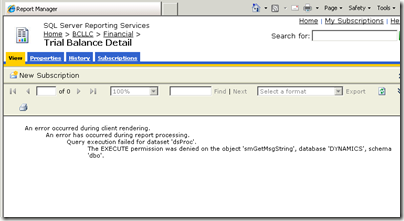
An error occurred during client rendering.
An error has occurred during report processing.
Query execution failed for dataset 'dsProc'.
The EXECUTE permission was denied on the object 'smGetMsgString', database 'DYNAMICS', schema 'dbo'.

The same error occurred on the Trial Balance Summary report. In reviewing the permissions on the smGetMsgString stored procedure, I found that only the DYNGRP role int he DYNAMICS database had EXECUTE permissions on it. After giving the three “rpt_” roles EXECUTE permissions, the report ran fine.
Has anyone else run across this or similar issues on other reports? Has Microsoft fixed this in a service pack?
Wednesday, October 28, 2009
Dynamics GP/SQL Database Login Disconnect
This article deals with the following error messages in Dynamics GP:
- “A get/change first operation on table 'coProcess' failed accessing SQL data”
- “[Microsoft][SQL Native Client][SQL Server]The server principal "LESSONUSER2" is not able to access the database "TWO" under the current security context.”
- “The user could not be added to one or more databases.”
- “A get/change first operation on table 'SY_Users_MSTR' failed accessing SQL data”
- “[Microsoft][SQL Native Client][SQL Server]The server principal "LESSONUSER1" is not able to access the database "DYNAMICS" under the current security context.”
- “[Microsoft][SQL Native Client][SQL Server]EXECUTE permission denied on object 'zDP_SY01400SS_1', database 'DYNAMICS', schema 'dbo'.”
Dynamics GP tracks users separately from SQL Server. However, there is a one to one relationship between a Dynamics GP user and a SQL Server login. Both the Dynamics GP user and corresponding SQL Server login have the same username. Additionally, when a user is granted access to a company, their SQL login is added as a SQL user in that company’s database as part of the DYNGRP role. The SQL logins associated with Dynamics GP users also have an associated SQL database user in the DYNAMICS database also a member of the DYNGRP role.
Problems happen when the Dynamics GP users and SQL logins get out sync. There are five situations when these get out of sync:
- The Dynamics GP user has been given access to a company in GP but the corresponding SQL login doesn’t have access to that company.
- The Dynamics GP user doesn’t have access to a company in GP but the corresponding SQL login does have access to the company.
- The Dynamics GP user doesn’t have access to the DYNAMICS database.
- The Dynamics GP user’s corresponding SQL login doesn’t have access to the Dynamics database.
- The Dynamics GP user’s corresponding SQL login isn’t a member of the DYNGRP role in the databases it is supposed to have access to.
First we’ll look at each of these situations individually and how to individually resolve them. Then we’ll look at a script that will clean up all of them at once.
Dynamics User w/ Missing SQL User
This is the case where a Dynamics GP user has been given access to a company in GP but the corresponding SQL login doesn’t have access to that company. In this case, the user will receive the following error message when logging into Dynamics GP:

Clicking on “More Info” returns the following:
“[Microsoft][SQL Native Client][SQL Server]The server principal "LESSONUSER2" is not able to access the database "TWO" under the current security context.”

To resolve this error, go into SQL Management Studio and add the corresponding SQL login to the company database as a member of the DYNGRP role.
SQL User in Company Database w/o Corresponding Dynamics GP User Access
In this case, the Dynamics GP user does not have access to a particular company but the corresponding SQL login does have access. This causes an error in the User Access form if you attempt to add the user to the offending company as follows:
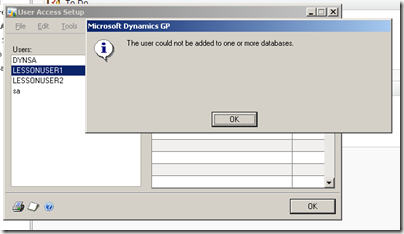
“The user could not be added to one or more databases.”

In this case, going into SQL Management Studio and removing the SQL login’s access to the company database will resolve the error and allow the Dynamics GP user to be given access to the company.
SQL User Doesn’t Have Access to the DYNAMICS Database
In this case, the Dynamics GP user has access to the company database, but doesn’t have access to the DYNAMICS database. If this happens, the user will see the following error when attempting to login to Dynamics GP.

Clicking on “More Info” returns the following:
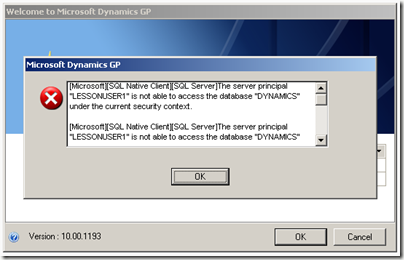
“[Microsoft][SQL Native Client][SQL Server]The server principal "LESSONUSER1" is not able to access the database "DYNAMICS" under the current security context.”


To resolve this error, go into SQL Management Studio and add the corresponding SQL login to the DYNAMICS database as a member of the DYNGRP role.
SQL User in Company Database w/o Membership in DYNGRP SQL Database Role
In this case, the Dynamics GP user has access to a company and their corresponding SQL login has access to the company database, however, they are not a member of the DYNGRP role in the company database. In this case the user will see the following error when trying to login to the company in question:
Clicking on “More Info” returns the following:

“[Microsoft][SQL Native Client][SQL Server]EXECUTE permission denied on object 'zDP_SY01300F_1', database 'TWO', schema 'dbo'.”

To resolve this, go into SQL Management Studio and add the corresponding SQL login to the DYNGRP in the company database in question.
SQL User Is Not a Member of the DYNGRP Role in the DYNAMICS Database.
In this case, the SQL user is properly setup in the company database and has access to the DYNAMICS database, but is not a member of the DYNGRP role in the DYNAMICS database. When logging in in this situation, the user will receive the following error:
Clicking on “More Info” returns the following:

“[Microsoft][SQL Native Client][SQL Server]EXECUTE permission denied on object 'zDP_SY01400SS_1', database 'DYNAMICS', schema 'dbo'.”

To resolve this, go into SQL Management Studio and add the corresponding SQL login to the DYNGRP in the DYNAMICS database.
A Script to Fix it All
So the individual fixes are all well and good, but we recently ran a Reformatter project, and in the process, moving from one SQL server to another, at a client with 50+ users and 230+ companies. In addition, we were reconfiguring all of their security to take advantage of GP 10’s role based security. Something we hadn’t done during the original upgrade.
When all was said and done, we ended up with a number of situations where there were various disconnects in the users, mostly SQL logins missing from companies when they should have been there and in companies they shouldn’t. Fixing all this by hand would have been a nightmare, so we decided to write a script that would fix it. In this case we had to write a script to write a script (see prior article related to this and how to setup SQL Management Studio to do this). Here, we not only had to write a script that created a script against each company, but also against each user as follows:
-- Don't forget to set Results to Text in your
-- SQL Management Studio query window.
--
-- Set NOCOUNT on so that row count doesn't show
-- up in the text results.
SET NOCOUNT ON;-- Common table expression that returns every
-- possible combination of user and company.
WITH UserCompanyCombinations
AS (
SELECT
SY01400.USERID
,SY01500.CMPANYID
,SY01500.INTERID
FROM SY01400 -- User Master table
CROSS JOIN SY01500 -- Company Master table
WHERE SY01400.USERID NOT IN ('sa', 'DYNSA')
)
-- Script to add all users to DYNAMICS database
SELECT
SQLStatement =
REPLACE(
'
USE DYNAMICS
GOPRINT ''ADDING USER {USERNAME} to DYNAMICS database.''
CREATE USER [{USERNAME}] FROM LOGIN [{USERNAME}]
GOEXEC sp_addrolemember ''DYNGRP'', ''{USERNAME}''
GO----------
',
'{USERNAME}', USERID)
FROM SY01400 -- User Master table
WHERE USERID NOT IN ('sa', 'DYNSA')UNION ALL
-- Script to remove users from company databases they shouldn't
-- have access to.SELECT
SQLStatement =
REPLACE(REPLACE(
'
USE {COMPANYDB}
GOPRINT ''REMOVING USER {USERNAME} from {COMPANYDB} database.''
DROP USER [{USERNAME}]
GO----------
',
'{COMPANYDB}', UserCompanyCombinations.INTERID)
, '{USERNAME}', UserCompanyCombinations.USERID)
FROM UserCompanyCombinations
LEFT JOIN SY60100 -- User Access table
ON UserCompanyCombinations.USERID = SY60100.USERID
AND UserCompanyCombinations.CMPANYID = SY60100.CMPANYID
WHERE SY60100.CMPANYID IS NULLUNION ALL
-- Script to add users to company databases they should have access to
SELECT
SQLStatement =
REPLACE(REPLACE(
'
USE {COMPANYDB}
GOPRINT ''ADDING USER {USERNAME} to database {COMPANYDB}''
CREATE USER [{USERNAME}] FROM LOGIN [{USERNAME}]
GOEXEC sp_addrolemember ''DYNGRP'', ''{USERNAME}''
GO----------
',
'{COMPANYDB}', SY01500.INTERID)
, '{USERNAME}', SY60100.USERID)
FROM SY01500 -- Company Master table
INNER JOIN SY60100 -- User Access table
ON SY01500.CMPANYID = SY60100.CMPANYID
WHERE SY60100.USERID NOT IN ('sa', 'DYNSA')
As you can see this is a union of three separate queries as follows:
- The first query creates a SQL statement for each user, adds them to the DYNAMICS database and then makes them a member of the DYNGRP role.
- The second query creates a SQL statement for each user and company that the Dynamics GP user doesn’t have access to a company as defined by the SY60100 user access table and removes their SQL user from the associated company database.
- The final query creates a SQL statement for each user and company database that the Dynamics GP users do have access to as defined by the SY60100 user access table, adding the corresponding SQL login to the database as a member of the DYNGRP role.
You’ll note that in all of the queries we’re excluding the “sa” and “DYNSA” users as these are treated as special users in Dynamics GP. “sa” should always be in the “sysadmin” server role, giving it full access to all databases. The “DYNSA” user maps to the “dbo” (database owner) user in each database rather than a user of the same name. This gives the “DYNSA” user special privileges in the database, such as the ability to modify database objects.
When you run the script above you should receive something like the following in the results pane:
USE DYNAMICS
GOPRINT 'ADDING USER LESSONUSER1 to DYNAMICS database.'
CREATE USER [LESSONUSER1] FROM LOGIN [LESSONUSER1]
GOEXEC sp_addrolemember 'DYNGRP', 'LESSONUSER1'
GO----------
USE DYNAMICS
GOPRINT 'ADDING USER LESSONUSER2 to DYNAMICS database.'
CREATE USER [LESSONUSER2] FROM LOGIN [LESSONUSER2]
GOEXEC sp_addrolemember 'DYNGRP', 'LESSONUSER2'
GO----------
USE FOUR
GOPRINT 'REMOVING USER LESSONUSER2 from FOUR database.'
DROP USER [LESSONUSER2]
GO----------
USE TWO
GOPRINT 'ADDING USER LESSONUSER1 to database TWO'
CREATE USER [LESSONUSER1] FROM LOGIN [LESSONUSER1]
GOEXEC sp_addrolemember 'DYNGRP', 'LESSONUSER1'
GO----------
USE TWO
GOPRINT 'ADDING USER LESSONUSER2 to database TWO'
CREATE USER [LESSONUSER2] FROM LOGIN [LESSONUSER2]
GOEXEC sp_addrolemember 'DYNGRP', 'LESSONUSER2'
GO----------
USE FOUR
GOPRINT 'ADDING USER LESSONUSER1 to database FOUR'
CREATE USER [LESSONUSER1] FROM LOGIN [LESSONUSER1]
GOEXEC sp_addrolemember 'DYNGRP', 'LESSONUSER1'
GO----------
Note that this is a little quick and dirty and running this script will cause errors when it tries to create users that already exist or drop users that don’t. Adding some extra code to check for a user’s existence or not wouldn’t be that difficult.
Subscribe to:
Posts (Atom)


 Posts
Posts


